

CAD/BIM Tips & Tricks
Keyboard Shortcuts for MicroStation CONNECT and V8i
9 November 2023
Updated 4 April 2024
Want to speed up your design work in OpenBridge, OpenRoads, GEOPAK, CONNECT and V8i? You can easily interact with MicroStation’s Main Toolbox, Tasks Toolbox, View Toolbox and Tool Settings dialog box using
keyboard shortcuts.
These shortcuts allow you to quickly call up a specific tool or tool option without moving the mouse cursor all over the screen. To take advantage of this, you simply need to enable it. Select Workspace | Preferences. Once the dialog box is open, make sure “Position Mapping” is enabled, as shown in Figure 1 below.
Want to speed up your design work in OpenBridge, OpenRoads, GEOPAK, CONNECT and V8i? You can easily interact with MicroStation’s Main Toolbox, Tasks Toolbox, View Toolbox and Tool Settings dialog box using keyboard shortcuts.
These shortcuts allow you to quickly call up a specific tool or tool option without moving the mouse cursor all over the screen. To take advantage of this, you simply need to enable it. Select Workspace | Preferences. Once the dialog box is open, make sure “Position Mapping” is enabled, as shown in Figure 1 below.

Figure 1. To get your Toolbox and Tool Settings keyboard shortcuts to work, simply turn on “Position Mapping” in your workspace preferences.
To get the shortcuts to work predictably, we need to understand a little bit about how MicroStation processes a keyboard shortcut.
When you press a key on the keyboard, MicroStation processes that key differently depending on which part of the interface is currently active and in focus. If you use AccuDraw, you already know that AccuDraw has its own set of keyboard shortcuts that are accessible only if AccuDraw is active and in focus.
By enabling Position Mapping, we have now added another part of the MicroStation interface that can accept keyboard shortcuts. This new interface is called the “Home” interface. For this reason, there is a simple way of switching the focus between the “AccuDraw” and “Home” Interfaces. (See Figure 2 below.)
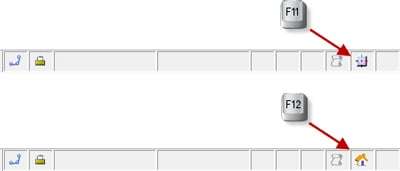
Figure 2. You can easily switch back and forth between the AccuDraw and the Home interfaces. With the press of a button, all of your toolbox and tool settings options are just a few keystrokes away. {F11} sets the interface to “AccuDraw”, and {F12} sets it to “Home”. Simple, eh?
MicroStation CONNECT and V8i are delivered by default with the {F11} function key assigned to provide focus on “AccuDraw” and the {F12} function key assigned to provide focus on “Home”. Press each of these function keys and note the new icons that are displayed in the status bar.
Press the {F12} function key again and also note that the Tasks toolbar icons have characters below them that will “wake up”, or become active. These are the shortcut keys associated with each toolset (as shown in Figure 3 below). As long as the “Home” icon is displayed in the status bar, you can press the corresponding highlighted shortcut key to activate the tool.

Figure 3. The main toolbar in the Tasks dialog box is shown before and after pressing the {F12} function key. Note the highlighted numbers represent the keys you can press to access a command.
For example, by pressing the shortcut key [2], which is associated with the “Place Fence” task (as shown in Figure 3 above), the associated toolbar menu appears (as shown in Figure 4 below). Now, simply press the number key associated with the tool you want to load.
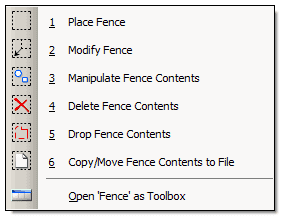
Figure 4. With the keyboard shortcuts, you can easily select a toolset using the designated number (in this case [2]) and then the number of the specific tool you want to use.
In addition, if you want to load the tool that is already showing in the toolbar (like the “Place Fence” tool shown in Figure 5, below), you just press [Shift] and the shortcut key, and the tool is activated and ready to use.

Figure 5. You can easily select and activate any tool currently displayed in the toolbar by combining the Shift key with the highlighted shortcut key. This example shows how to immediately activate the “Place Fence” tool.
Want More MicroStation Know-how? Call Now!
For more information on time-saving tools for MicroStation, visit AxiomInt.com. Chat with us online, access a free trial or schedule a free demonstration. Alternatively, if you’re trying to solve a specific problem, talk to a MicroStation Service Consultant at 727-442-7774.
